
Set up Telegram for alerts
Telegram is the quickest way to receive an alert on your phone. There are five steps. Only installing the app and where to find the settings differ between iPhone and Android. This guide is for CybeTower Radar alerts: CybeTower Bastion alerts are set up in its console.
Install Telegram
Open the App Store on your iPhone, search for Telegram Messenger and tap Get.
Open Google Play on your phone, search for Telegram and tap Install.
Create your account
- Open Telegram and tap Start Messaging.
- Enter your phone number and confirm it.
- Wait for the SMS with the verification code and enter it.
- Complete your profile with your name.
- Keep notifications turned on: without them, alerts still arrive but you won't notice them.
Set your Telegram username
Your username is a name you choose in Telegram, separate from your phone number: for example smith_shop. Anyone who knows it can message you without knowing your number, and alerts are sent to this name, so you need to have one. If you already have one, skip to step 4. It must be at least five characters long and can contain letters, numbers and underscores (_), which you will find among the symbols on your phone's keyboard. If Telegram tells you the name is already taken, add a number or another word until it is accepted.
- Open Telegram and tap Settings, at the bottom right.
- Tap your name or your number at the top to open your profile.
- Tap Edit at the top right, then Username.
- Type the username you want and tap Done.
- Open Telegram and tap the three lines at the top left.
- Go to Settings.
- Tap your name or your number at the top, then Username.
- Type the username you want and tap the tick at the top right.
Start the alerts bot
A bot is an automated Telegram contact: there is no person at the other end, it is only there to send you alerts. The CybeTower one is called @CybetowerAlert_bot. Tap the button below: Telegram opens the chat with the bot. Tap Start, at the bottom of the screen. Then come back here for the last step: press your phone's back button, or reopen the browser. Without this tap alerts will not be sent, even with the correct username in your profile: Telegram doesn't let a bot be the first to message someone who has never started it.
@CybetowerAlert_bot
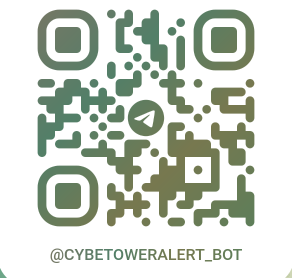
If the button does not work, search for the bot by name within Telegram, or open its address in a browser on the phone where you installed the app.
Enter your username and send a test
- Sign in to your CybeTower Radar personal area and open View Profile, then Edit Profile.
- In the Telegram notifications field, type your username without the leading @, exactly as it appears in Telegram, including capital letters, and press Save Changes.
- Open Test Alerts and press Send Test Alert.
- Check your phone: the message should arrive within a few seconds.
Done
From now on, alerts arrive on Telegram. If the test does not arrive, check two things: that you tapped Start on the bot, and that the username in your profile is written without the @ and with the same capital letters you see in Telegram.